How to Download Amazon Product Videos and Images for Free — The Complete Guide to Amazon Product Video Downloader
If you’ve ever tried to save a product video or high-resolution image from an Amazon listing, you already know how frustrating it can be. Amazon doesn’t offer a native download button, and manual workarounds — inspecting network requests, digging through developer tools, screen-recording — waste hours and produce low-quality results.
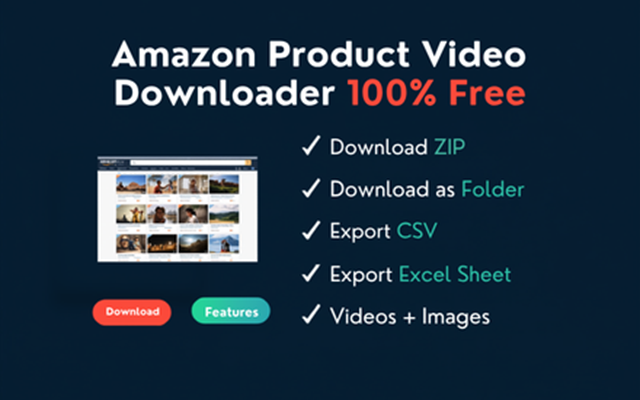
Amazon Product Video Downloader is a free Chrome extension that changes all of that. In one click it extracts every image and video from any Amazon product page, lets you pick what you want, and saves everything to your computer as a ZIP file, a folder, or a spreadsheet of direct links — no account, no subscription, no watermarks.
This guide covers everything: what the extension does, who it’s for, how to install it, and how to get the most out of every feature.
1. What Is Amazon Product Video Downloader? {#what-is-it}
Amazon Product Video Downloader is a Manifest V3 Chrome extension (version 2.0.0) that runs entirely inside your browser. When you open any Amazon product page, the extension automatically scans the page — reading the same JavaScript data Amazon’s own storefront uses — and presents every available image and video in a clean selection UI.
Unlike screen-recorders or online “Amazon video downloader” sites, this extension captures the original source URLs that Amazon embeds inside the product page. That means you get:
- Full-resolution images (not browser-scaled thumbnails)
- Original MP4 or HLS stream files (not a re-encoded screen capture)
- Metadata: video title, duration, thumbnail, and file size
Everything happens locally. Your media goes straight from Amazon’s CDN to your Downloads folder — no third-party server touches your files.
2. Who Needs This Extension? {#who-needs-it}
Amazon Sellers and Brand Owners
If you manage your own brand on Amazon, your product images and videos are your intellectual property. You may need them for:
- Rebuilding a listing after an account suspension
- Repurposing media for your own website, social channels, or Shopify store
- Sharing assets with a creative agency or freelancer
- Keeping a local backup of all your listing media
E-Commerce Marketers and Copywriters
Agencies and in-house teams writing product descriptions or building comparison pages often need reference images and spec data. The extension’s product information export pulls the technical specification table straight from the listing, saving you from manual copy-pasting.
Content Creators and Reviewers
YouTubers, bloggers, and TikTok creators who produce product reviews can use the extension to grab official product footage to illustrate their videos — always with the source URL preserved for attribution.
Dropshippers and Product Researchers
Before you commit to selling a product, you want to see how the manufacturer has presented it. Downloading the full image gallery and video library gives you an offline reference without keeping a browser tab open.
Virtual Assistants and Listing Managers
VAs who maintain multiple client accounts benefit enormously from the batch queue and CSV/Excel export features, which let them collect media links from dozens of ASINs without touching a keyboard shortcut.
3. Key Features at a Glance {#key-features}
| Feature | Details |
|---|---|
| Image download | Full-resolution JPGs, auto-detected from the colorImages data block |
| Product video download | MP4 / HLS streams embedded in the listing |
| Related video download | Manufacturer and brand videos shown alongside the main listing |
| Review video support | Customer-uploaded video reviews detected via DOM |
| Download as ZIP | All selected files bundled into a single ZIP with JSZip, saved to Downloads |
| Download as Folder | Each file saved individually to a named subfolder in Downloads |
| Download Links (CSV) | Spreadsheet-ready list of every selected URL |
| Download Links (Excel) | .xls file that opens natively in Microsoft Excel |
| In-page download buttons | “⬇ Download” and “+ Queue” buttons injected directly on video thumbnails |
| Floating download queue | Queue videos across multiple ASINs; open the popup to batch-download |
| Product description export | “About this item” bullet points included in every ZIP |
| Specification export | Technical specification table included in every ZIP |
| VideoGen integration | One-click send to VideoGen to auto-generate a product review video |
| No account required | Completely free; no login, no API key |
| 12 Amazon storefronts | Works on amazon.com through amazon.com.mx |
| Real-time progress bar | Live percentage indicator and per-file filename during download |
| Cancel any download | Cancel button stops and cleans up mid-download |
4. Supported Amazon Storefronts {#storefronts}
The extension works on every major Amazon marketplace:
- amazon.com (United States)
- amazon.co.uk (United Kingdom)
- amazon.de (Germany)
- amazon.fr (France)
- amazon.co.jp (Japan)
- amazon.ca (Canada)
- amazon.in (India)
- amazon.com.au (Australia)
- amazon.es (Spain)
- amazon.it (Italy)
- amazon.nl (Netherlands)
- amazon.com.mx (Mexico)
You do not need to change any settings when switching between storefronts. The extension automatically activates on any product page (/dp/, /gp/product/, or /gp/aw/d/ URLs) across all twelve domains.
5. How to Install Amazon Product Video Downloader {#install}
Step 1 — Add to Chrome
Search for “Amazon Product Video Downloader” in the Chrome Web Store, or visit the extension’s listing page. Click Add to Chrome, then confirm by clicking Add extension in the dialog that appears.
Step 2 — Pin the Extension
Click the puzzle-piece icon in your Chrome toolbar, find Amazon Downloader, and click the pin icon so it stays visible at all times. You’ll see a small icon appear in your toolbar.
Step 3 — Open an Amazon Product Page
Navigate to any product page on a supported Amazon storefront. The extension activates automatically — you’ll notice download buttons appearing on video thumbnails within a few seconds of the page loading.
Step 4 — Click the Extension Icon
Click the Amazon Downloader icon in your toolbar. The popup will scan the page and display all discovered images and videos within moments.
That’s the complete installation. There is no account to create, no subscription to start, and no permissions beyond what’s needed to read the page and write to your Downloads folder.
6. How to Download Amazon Product Images {#download-images}
Opening the Extension
Navigate to any Amazon product detail page and click the Amazon Downloader icon in your Chrome toolbar. The popup opens and immediately begins scanning.
Understanding Image Detection
The extension extracts images from the colorImages.initial data block that Amazon embeds in every product page. This is the same source Amazon’s own image carousel reads — meaning you get the hiRes version of every swatch and angle, not just the thumbnail. For listings where colorImages is absent (some older listing formats), the extension falls back to reading data-old-hires attributes from the main image element and the alt-image sidebar.
URL fragments like ._AC_SL1500_. that Amazon adds to enforce size caps are stripped automatically, so you always get the largest available resolution.
Selecting Images
Once the popup loads, you’ll see a thumbnail grid in the Images section. The first four images are pre-selected by default. You can:
- Check or uncheck individual thumbnails
- Use the Select All checkbox at the top to select everything at once
- Mix image and video selections freely
The counter in the top-right of the selection area updates live as you change your selection.
Naming Your Download
The Folder / ZIP name field at the top of the right panel is pre-filled with the product title, sanitized to remove characters that aren’t valid in file or folder names. You can edit it before downloading.
Triggering the Download
Click Download as ZIP to bundle everything into a single archive, or Download as Folder to save each image as a separate file inside a named folder in your Downloads directory. A real-time progress bar and the name of the file currently being fetched appear while the download runs.
7. How to Download Amazon Product Videos {#download-videos}
How Video Detection Works
Amazon stores product video metadata in several places simultaneously, and the extension searches all of them:
- colorImages.initial — The primary data block; parsed with
JSON.parsefirst, with a regex fallback for malformed JSON. - Other inline script tags — Scanned for any script that references the product’s ASIN or Amazon’s VSE (Video Service Engine) CDN URLs.
- DOM
<video>elements — Used as a last resort when the page renders video through a player rather than embedding URLs in script data. data-a-stateanddata-stateDOM attributes — Parsed for video objects embedded in component state.<script type="a-state">andapplication/jsonblocks — Walked recursively for nested video data.- Broad VSE URL scan — Every script tag is searched for
vse-vms-transcodingURLs regardless of the field name used to store them. - Review video DOM scan — Customer-uploaded video reviews are found via
[data-hook*="video"]elements and their associated state attributes.
After collection, the extension runs a metadata enrichment pass: if a video URL was found but its title, thumbnail, or duration are missing, it searches every other script tag for that same URL path and fills in the gaps. As a final fallback, thumbnail URLs are derived from the video URL’s own path structure (Amazon VSE stores slate images at a predictable location relative to the stream URL).
HLS quality variants (HLS_V1 through HLS_V4) are deduplicated — only the highest-quality variant for each logical video is kept.
Video Categories
Videos are grouped into two collapsible sections:
- Videos for this product — Official product videos uploaded by the seller or manufacturer
- Related videos for this product — Brand videos and supplementary content Amazon surfaces alongside the listing
Each group has its own chevron toggle so you can expand or collapse it.
Auto-Selection Logic
The extension automatically pre-selects the top four videos by duration (longest first). These are marked with a gold star (★) badge labeled “Auto-selected (longest).” The logic prefers longer videos because they tend to be the main product demonstrations rather than short bumpers or logos.
Video Metadata
Each video row shows:
- Thumbnail — loaded asynchronously through a background proxy so that Amazon’s CDN images display correctly even from the extension’s origin
- Title — decoded from the listing’s JSON, with Unicode escape sequences resolved
- Duration — shown immediately if found in JSON; otherwise populated asynchronously by parsing the HLS manifest
- File size — fetched asynchronously from the HLS manifest; shown as KB or MB once available
Downloading Videos
Select the videos you want, then choose a download format. Videos download as the highest-quality HLS stream available. The progress bar tracks each file individually, showing the file being fetched at each step.
8. Download Formats Explained: ZIP vs. Folder vs. CSV/Excel {#formats}
Download as ZIP
All selected images, videos, product description text, and specification data are bundled into a single .zip file using JSZip and saved to your Downloads folder. This is the recommended format when you want to archive a listing or share media as a single attachment.
If any individual file fails to fetch (e.g., a CDN link that has expired), the extension includes a .txt file inside the ZIP containing the direct URL so you can retrieve it manually later.
Download as Folder
Each selected file is saved individually to a subfolder inside your Downloads directory. The subfolder is named after the product (using the value in the Folder / ZIP name field). This format is best when you need the files to be immediately accessible without unzipping, or when you’re integrating with a workflow that reads from a folder.
Download Links — CSV
Clicking Download Links (CSV / Excel) reveals two format options. The CSV option saves a UTF-8 encoded comma-separated file with three columns: Type (Image or Video), Title, and URL. This is ideal for importing into Google Sheets, Airtable, or any data tool that accepts CSV.
Download Links — Excel (.xls)
The Excel option saves an HTML table with an .xls extension. Microsoft Excel and LibreOffice Calc open this natively without any conversion step. Use this when sharing with clients or team members who prefer a spreadsheet format.
9. Using the In-Page Download Buttons {#in-page-buttons}
One of the most powerful features of the extension is that it injects download buttons directly onto the Amazon product page — you don’t need to open the popup at all for quick, individual video saves.
How the In-Page Buttons Work
When the page loads, the extension:
- Runs its full video extraction routine.
- Scans the DOM for video thumbnail images using a set of high-confidence CSS selectors (
#videoBlock img,[data-hook*="video"] img,[class*="vse-"] img, etc.). - Matches each thumbnail image to the extracted video metadata by comparing normalized thumbnail URLs.
- Injects a small overlay containing two buttons on each matched thumbnail:
- ⬇ Download — immediately downloads that single video to your Downloads folder
- + Queue — adds the video to the floating download queue
Handling Amazon’s HLS Player
Amazon’s video player uses HLS.js, which means <video> elements on the page always have a blob: URL as their currentSrc rather than the original stream URL. The extension works around this with a capture-phase click listener: when you click any video thumbnail on the page, the extension records which video object that thumbnail maps to. When loadedmetadata fires on the <video> element, the correct video object is already known and the download/queue buttons can be injected on the player itself.
The Floating Download Queue Badge
A floating action button labeled Download Queue appears in the bottom-right corner of every Amazon product page. When it shows a count greater than zero, clicking it opens the extension popup in queue mode, pre-selecting all queued videos and showing them alongside the page’s images and text data so you can download everything in a single batch operation.
MutationObserver for Dynamic Content
Amazon product pages load sections progressively as you scroll. The extension uses a MutationObserver on document.body to detect newly rendered content and inject buttons on any video thumbnails that appear after initial load. A polling fallback also runs every second for the first 30 seconds to catch sections that load outside the mutation budget.
10. How to Build a Video Download Queue {#queue}
The queue is designed for workflows where you want to browse multiple products and collect videos before downloading them all at once.
Adding Videos to the Queue
On any Amazon product page, click the + Queue button on any video thumbnail overlay. The button briefly shows “✓ Queued” and the floating badge count increments. You can navigate to a different product and continue adding to the queue — queues are stored per ASIN in session storage, so videos from different products stay organized separately.
Opening the Queue
Click the Download Queue floating badge to open the extension popup in queue mode. The popup shows:
- A banner at the top indicating how many videos are from the queue
- The full image gallery from the current product page (with all images deselected, so you choose deliberately)
- All queued videos pre-checked at the top of the video list, followed by other videos from the page
- A Clear queue button in the banner to reset the queue for this ASIN
Downloading from the Queue
Once the queue popup is open, adjust your image and video selections and click any of the three download buttons. Everything works identically to normal popup mode — the queue is just a way of pre-selecting specific videos across a browsing session.
11. Extracting Product Descriptions and Specifications {#text-data}
Beyond media, the extension captures two additional data types that are included in every ZIP and folder download.
“About This Item” Bullets
The product description — the bulleted list in the “About this item” section — is extracted by reading all li span.a-list-item elements inside #feature-bullets. The text is joined with newlines and saved as a plain-text file inside the downloaded package.
In the popup, you can expand the About this item collapsible panel to preview the bullets before downloading.
Product Information / Technical Specs
The specification table (dimensions, weight, ASIN, material, etc.) is extracted from Amazon’s #productDetails_techSpec_section_1 table, falling back to #detailBullets_feature_div if the primary table is absent. Each row becomes a Key: Value line in the exported text file.
Both text exports are always included in ZIP and folder downloads alongside the selected images and videos, giving you a complete listing snapshot in one operation.
12. Generate Product Review Videos Automatically with VideoGen {#videogen}
At the bottom of the extension popup is a prominent button: Generate Product Review Video | Auto Pilot. This connects directly to VideoGen, the platform built by the same team.
What Happens When You Click It
The extension sends the following data to VideoGen:
- The product name
- All currently selected images (their full-resolution URLs)
- All currently selected videos (URL, title, duration, and thumbnail)
- The full product description
- The full specification table
VideoGen uses this data to automatically generate a narrated product review video without any manual editing. The video creation flow opens in a new browser tab at videogener.com/gen-product-review-videos/setup/.
Who This Is For
This feature is especially valuable for:
- Amazon FBA sellers who want to create social media content from their own listing media
- Dropshippers who want to produce product videos at scale without filming
- Affiliate marketers building review content for YouTube or TikTok
- Virtual assistants managing video production pipelines for multiple clients
13. Tips, Tricks, and Power User Workflows {#tips}
Tip 1 — Use “Select All” Then Deselect What You Don’t Need
If a product has ten images but you only want six, it’s faster to click Select All and then uncheck the four you don’t want than to check six individually.
Tip 2 — Queue Videos While Browsing Search Results
Open product pages in background tabs, add videos to the queue on each one using the in-page buttons, then open each tab and click Download Queue to batch-export. This dramatically speeds up research sessions where you’re evaluating many products.
Tip 3 — Use CSV Export for Bulk Link Collection
If you need to hand off media assets to a designer or developer, the CSV export is faster than downloading files yourself. Share the spreadsheet and let the recipient fetch only what they need directly from Amazon’s CDN.
Tip 4 — Rename the Folder Before Downloading
The Folder / ZIP name field pre-fills with the product title, but Amazon titles can be verbose. Edit the field to something shorter before downloading so your Downloads folder stays organized. The extension sanitizes the name automatically (removes characters that aren’t valid in paths).
Tip 5 — Let Video Metadata Load Before Selecting
After the popup opens, the extension fetches video file sizes and durations asynchronously by parsing HLS manifests in the background. Wait two to three seconds for the … placeholders to resolve before making selection decisions — especially useful when you want to download only the longest video.
Tip 6 — Cancel and Restart If a Download Stalls
The Cancel button during a download cleanly aborts the operation. If a download appears stuck on one file, cancel, reopen the popup, and restart — the progress bar reconnects to the existing download session automatically.
Tip 7 — Use the In-Page Buttons for Quick Individual Downloads
When you only need one video, clicking ⬇ Download directly on the thumbnail is faster than opening the popup, selecting, and clicking a download button. A small panel in the corner of the page shows per-file download progress with a completion indicator.
14. Frequently Asked Questions {#faq}
Does the extension require an Amazon account? No. It reads publicly available data from Amazon product pages that any visitor can see. You do not need to be logged in to Amazon, and you do not need to create an account with the extension.
Is Amazon Product Video Downloader free? Yes, completely free with no usage limits, no subscription tier, and no premium version.
Will it work on Amazon products in other languages? Yes. The extension detects media from the page’s structured data, which is the same regardless of language. It works on all 12 supported storefronts including German (amazon.de), Japanese (amazon.co.jp), and French (amazon.fr).
Why are some videos missing from the popup? A small number of listings embed video through a third-party player that stores URLs in formats the extension doesn’t recognize. If you see fewer videos than the listing appears to contain, try clicking the video thumbnails on the page directly — the in-page buttons may detect videos through the DOM that the popup missed.
What is the quality of downloaded videos? The extension selects the highest available quality variant. Amazon serves videos in HLS with multiple quality levels (labeled HLS_V1 through HLS_V4); the extension keeps only the highest numbered variant, which corresponds to the best available resolution and bitrate.
Why do some images show as broken thumbnails? Occasionally Amazon expires CDN image URLs between when the popup loads and when the download runs, or a product has a variant image that isn’t available at full resolution. The broken thumbnail is cosmetic — if the URL itself is valid, the download will still succeed.
Does the extension slow down Amazon pages? The content script runs after the page is fully loaded (run_at: document_idle) and performs no network requests that Amazon doesn’t already make itself. The visual scan for video thumbnails uses a MutationObserver that is lightweight by design. In normal use there is no perceptible impact on page performance.
Can I use this for competitor research? The extension downloads publicly available media from product pages that any Amazon customer can view. How you use that media is your responsibility — always respect intellectual property rights and Amazon’s terms of service.
Where are downloaded files saved? All files are saved to your browser’s default Downloads folder, in the subfolder or ZIP named after the product (or the custom name you enter in the Folder / ZIP name field).
Does the extension upload my data anywhere? No — unless you click Generate Product Review Video, at which point product data is sent to VideoGen to initiate the video generation process. No data is transmitted during normal image/video downloads; those go directly from Amazon’s CDN to your local disk.
Final Thoughts
Amazon Product Video Downloader solves a genuinely difficult problem elegantly. Extracting media from Amazon product pages requires parsing multiple overlapping data sources, handling HLS video streams, working around CDN CORS restrictions, and keeping up with Amazon’s frequently changing page structure — and this extension handles all of it silently in the background.
Whether you’re an Amazon seller backing up your own listing assets, a content creator gathering reference footage, or a power user building a research workflow, the combination of ZIP/folder/CSV exports, in-page download buttons, a persistent video queue, and one-click VideoGen integration covers every use case without friction.
Install it, open any Amazon product page, and your first download is seconds away.

With a solid foundation in technology, backed by a BIT degree, Lucas Noah has carved a niche for himself in the world of content creation and digital storytelling. Currently lending his expertise to Creative Outrank LLC and Oceana Express LLC, Lucas has become a... Read more